



The RentAcc personal account finally has a feature everyone has been waiting for: automatic rules for Moloco agency accounts . This is a major update that unlocks new opportunities for automation and optimization of your ad campaigns. It will allow you to centrally manage multiple accounts, automate routine processes and achieve consistent results in affiliate marketing.
In this guide, we'll take a detailed look at what autorules are, why they're needed, how to set them up, and which use cases will help you cut costs and keep your profit stable.
What are autorules for?
Autorules are automated conditions that let you manage campaigns without manual actions. You set the parameters, and the platform will:
- pause ads when performance drops;
- automatically top up your balance;
- send a notification when key metrics swing abruptly.
This is especially relevant for Moloco , which until recently lacked such automation. Implementing automated rules will prevent budget losses, as ads that aren't generating results will be automatically stopped, and will also ensure traffic stability, as auto-top-ups help avoid downtime.
The system reacts to metric changes faster than a human, ensuring instant adjustments in volatile performance conditions. Now let's move on to the most important part — step-by-step setup of autorules inside your RentAcc dashboard and a quick walkthrough of the interface. The process of setting up automatic rules is extremely simple and intuitive, but since this feature is brand new, we’ve prepared a straightforward step-by-step guide for you.
How to set up an automatic rule based on ad metrics
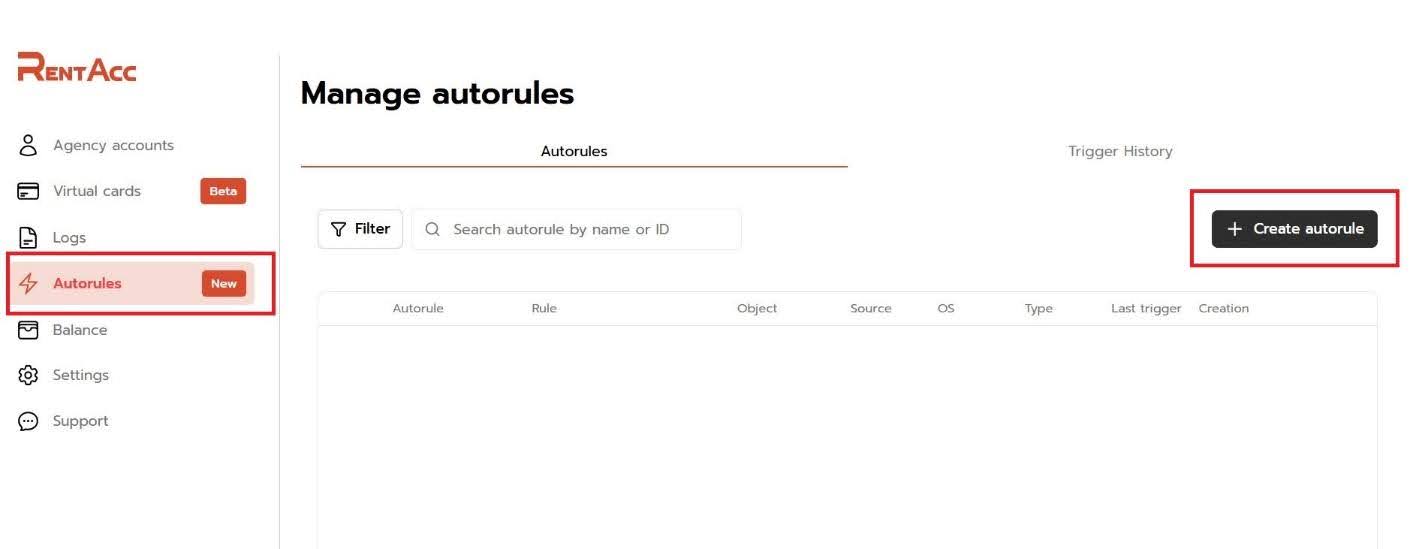
To create an autorule, go to the Autorules tab in the side menu and click the +Create autorule button.
Next, select the rule type — Performance or Balance — and we'll cover the specifics of each. Let's start with Performance auto-rules, which allow you to automatically stop underperforming Ad Groups based on specified metrics. For example, if the spend exceeds $50 but you have fewer than three installs, the system will automatically stop that group.
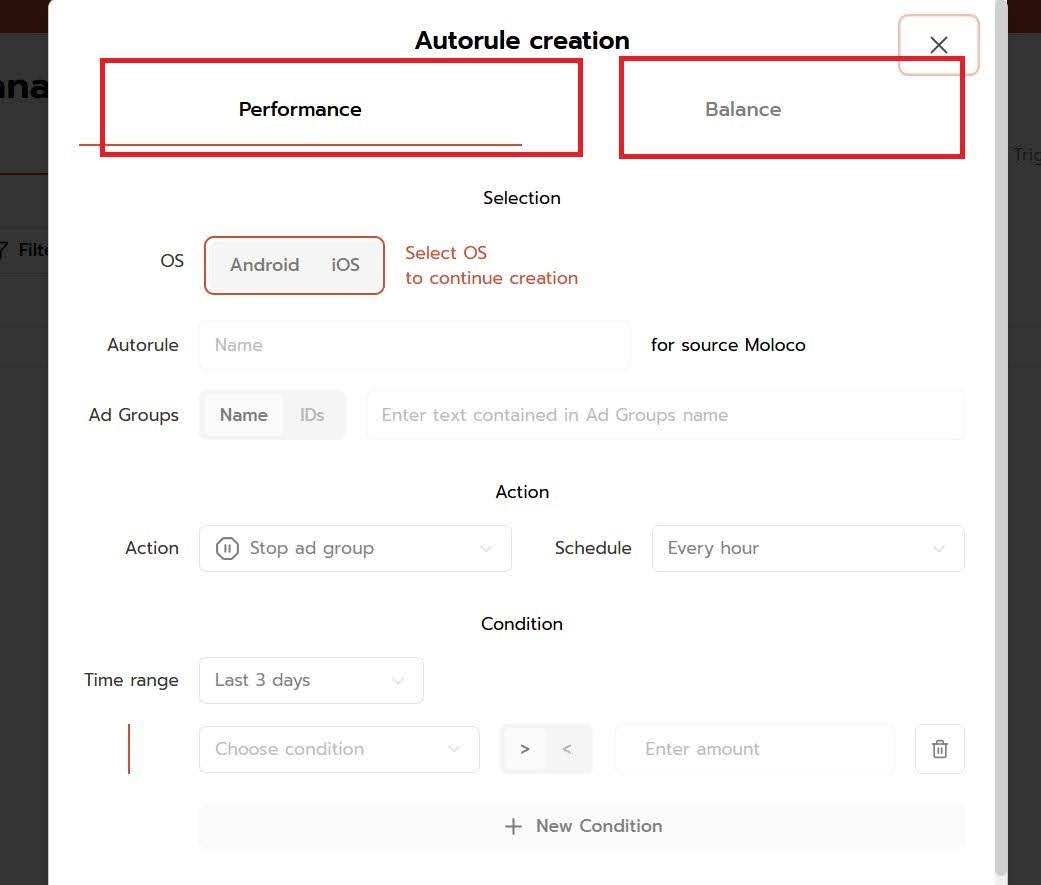
Step-by-step setup of the Performance rule
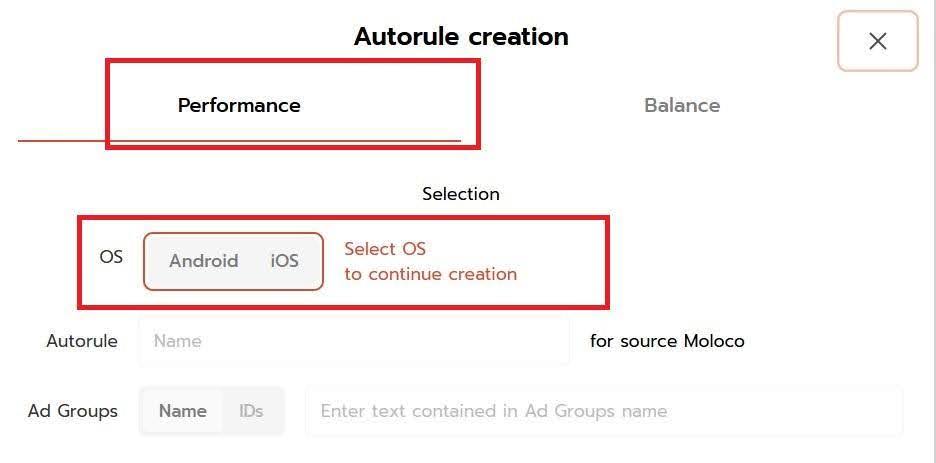
1. The OS field specifies for which platforms, Android or iOS, the rule will be applied.
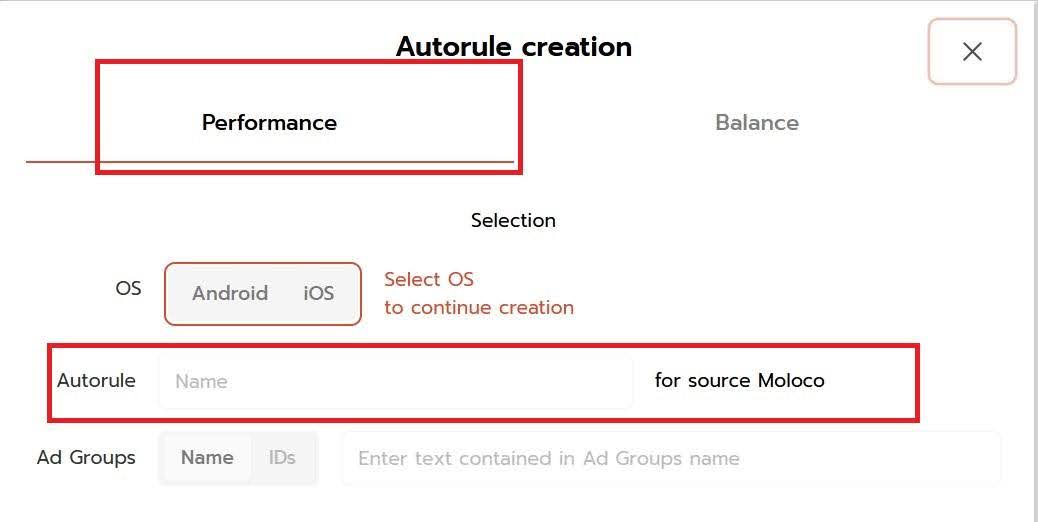
2. In the Autorule name field, enter name so you can easily navigate your autorule list later.
3. The Ad Group determines which Ad Groups the rule will apply to. Currently, only Ad Groups can be targeted, but support for other categories is planned for the future.
There are two ways to select Ad Groups:
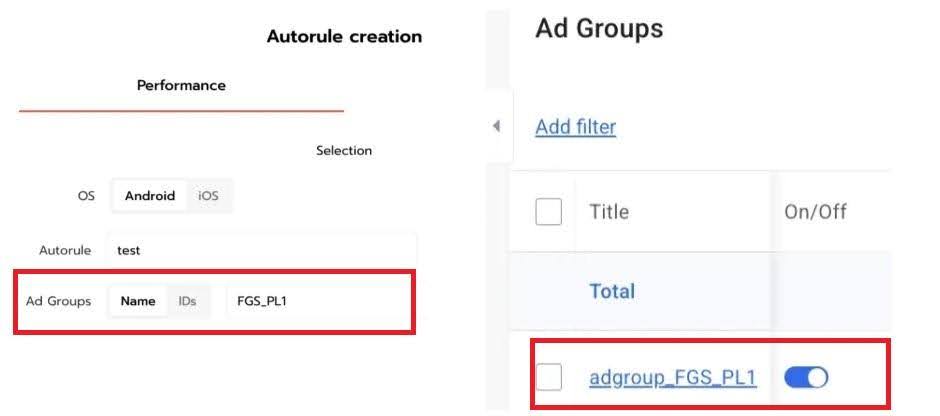
- By Name — enter a text fragment that appears in the names of the Ad Groups you want. For example, if you type FGS_PL1, the rule will apply to all groups containing this text in their name. This is convenient when you're working with a large number of similar groups.
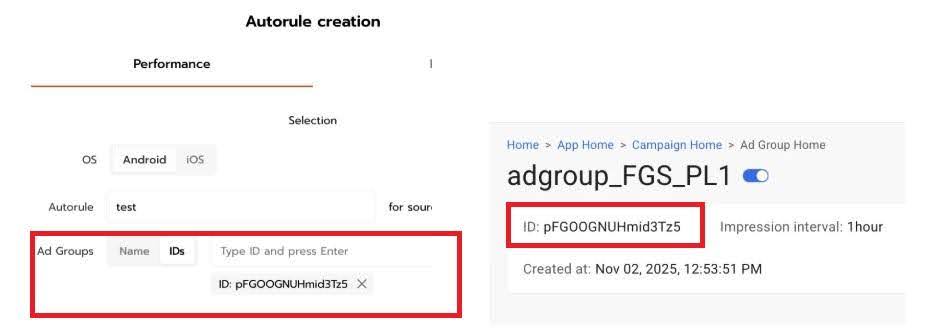
- Using Ad Groups ID, you can manually specify specific group IDs to which the rule will apply. This method is suitable for fine-grained customization.
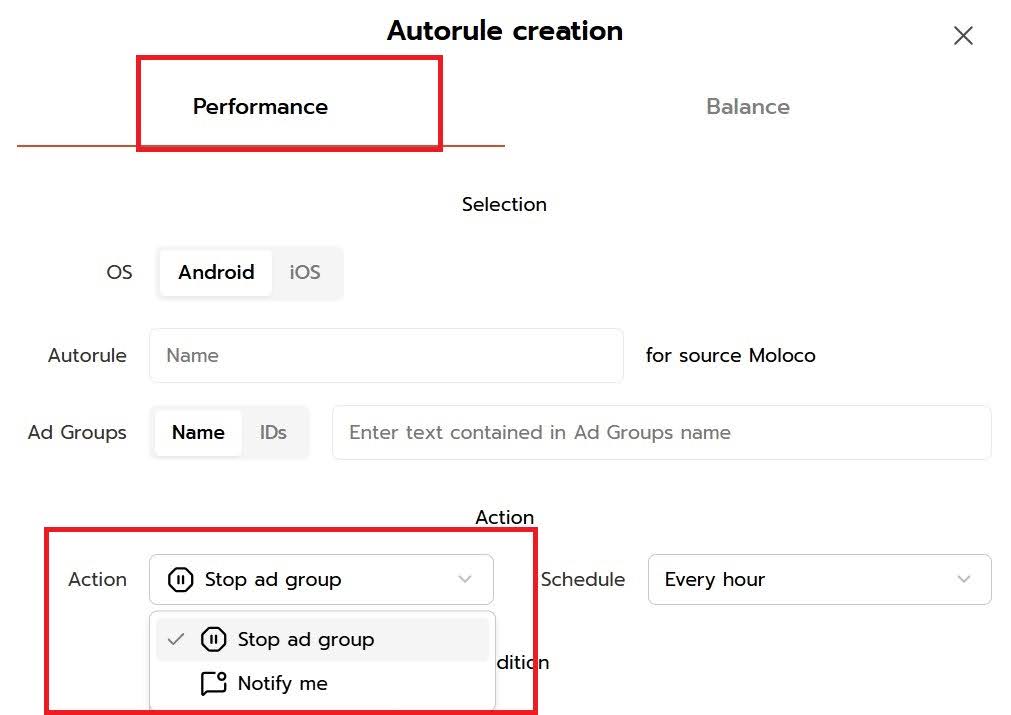
4. Action specifies the action that the system will perform:
- Stop ad group — stop Ad Groups that match the conditions.
- Notify me — sends a notification to the chat without stopping the group. Useful for monitoring without automated intervention.
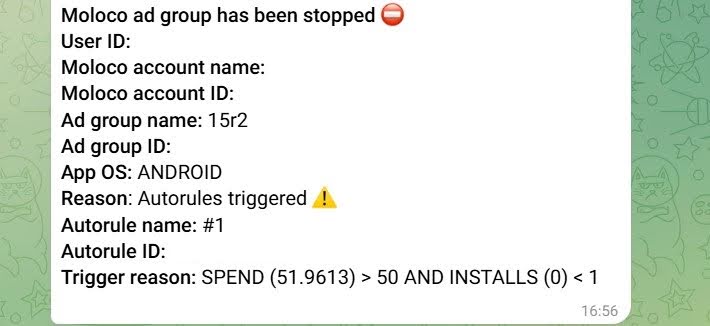
Notifications about triggered autorules are sent to Telegram. For example, here's what a notification looks like when the ad group spend exceeds $50.
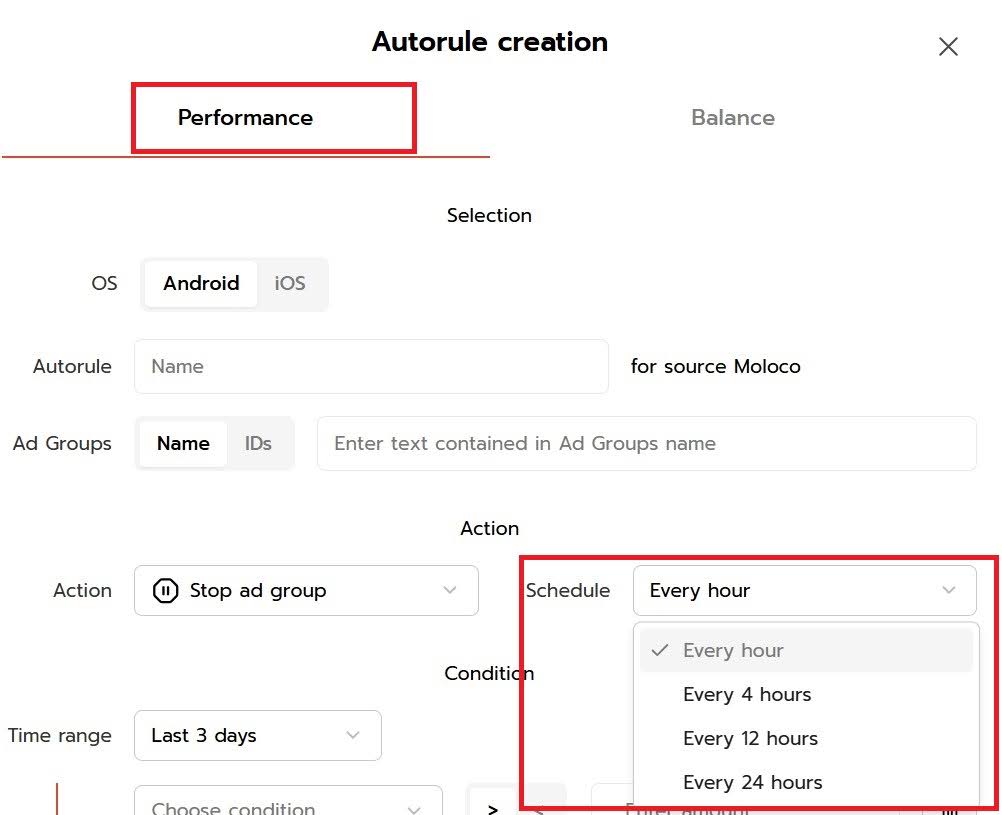
5. Use Schedule to set the frequency of condition checks. Intervals of 1, 4, 12, or 24 hours are available. The shorter the interval, the faster the system will respond to metric changes.
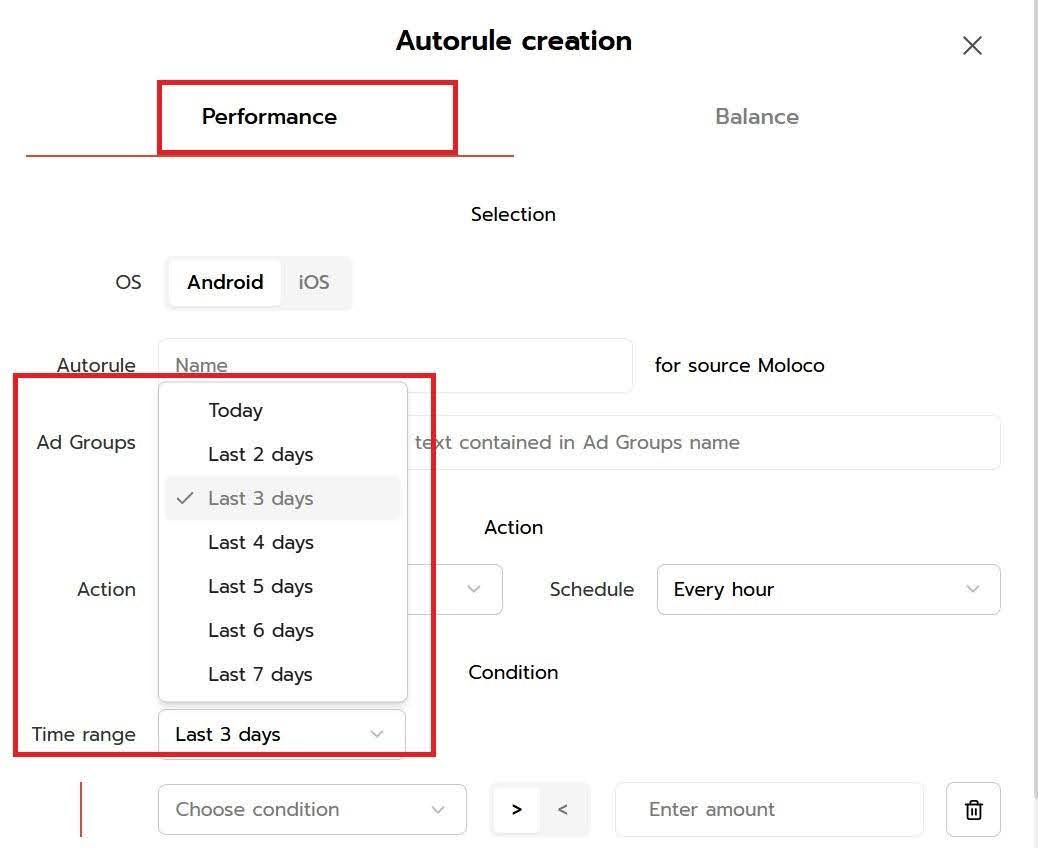
6. Time range — the period over which the system will analyze statistics. For example, if you select "last 3 days," data will be aggregated for this period each time you check statistics in Moloco .
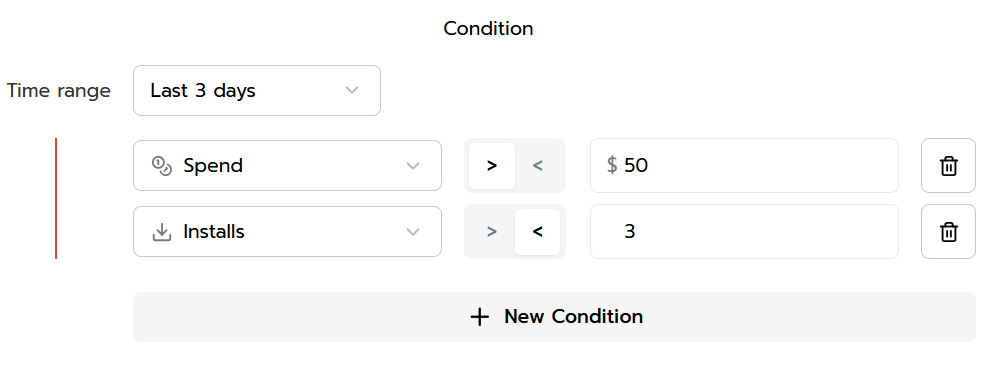
7. Condition is the key block where you set metrics and thresholds. For example, you can set a rule: if an Ad Group spends more than $50 today and generates fewer than 3 installs, it will be stopped. This allows you to quickly cut out non-performing ad sets and save money.
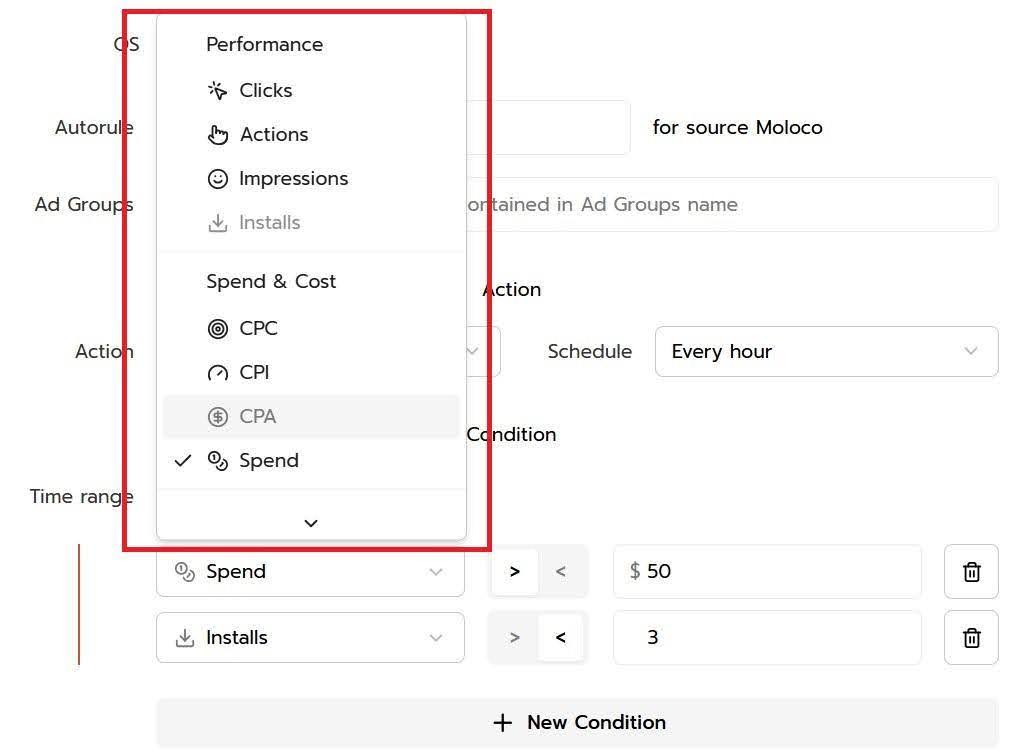
You can set automatic rules for Android based on parameters such as Installs, Clicks, Actions, Impressions, CTR, IPM, CPA, CPC, CPI, and Spend. For iOS, the list of metrics is slightly shorter, but still sufficient for comprehensive optimization.
How to set up an automatic rule based on account balance
Balance-type autorules let you automate balance control for your Moloco advertising accounts and trigger auto-top-ups when needed. This is especially important for large-scale traffic purchases, when manual balance monitoring becomes ineffective. RentAcc provides a flexible configuration system that checks the balance every 5 minutes and initiates a top-up when required.
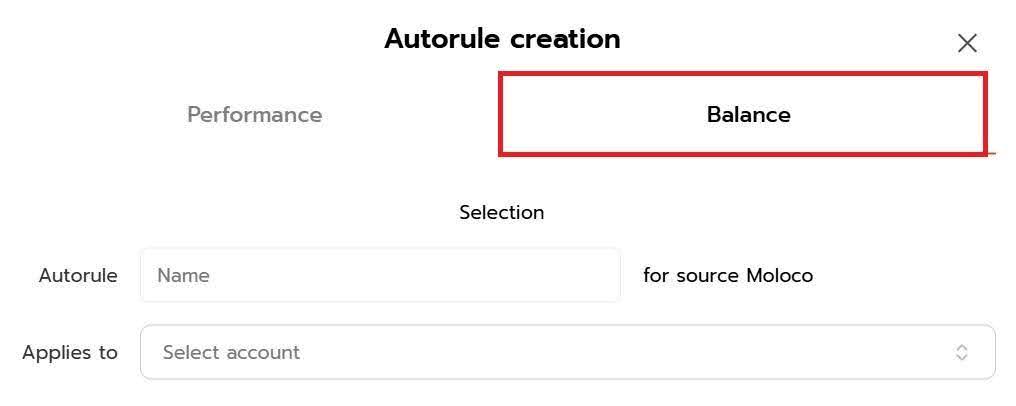
Step-by-step setup of the Balance rule
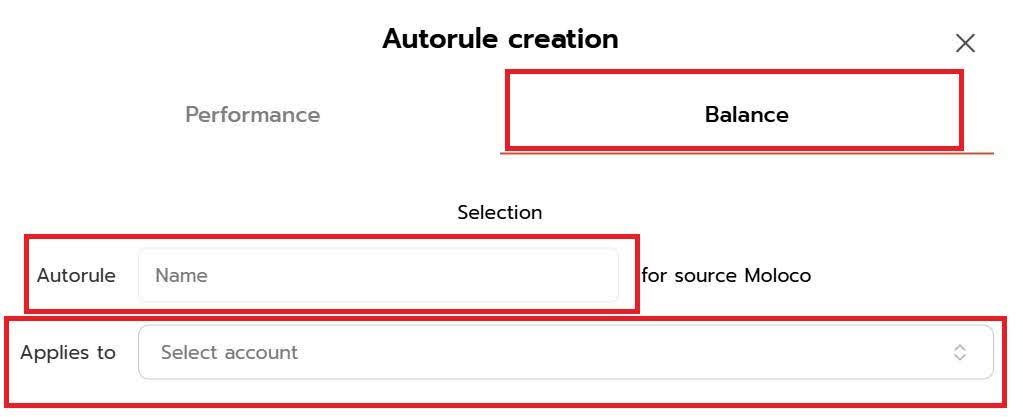
1. In the Name field, you can enter a name, and in Applies to, you select the account to which the rule will apply. This can be one or more Moloco accounts connected to your agent account.
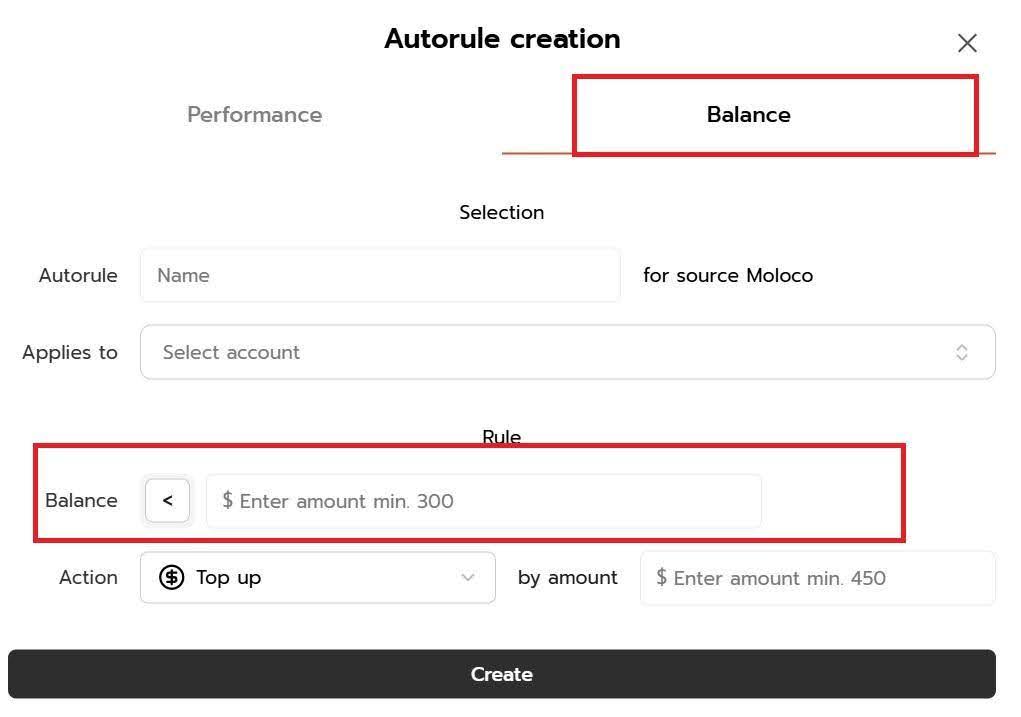
2. Use Balance to set the balance threshold at which the rule is triggered. For example, if you enter $300, the specified action will be performed when the balance drops below that amount. Pay attention to the minimum value.
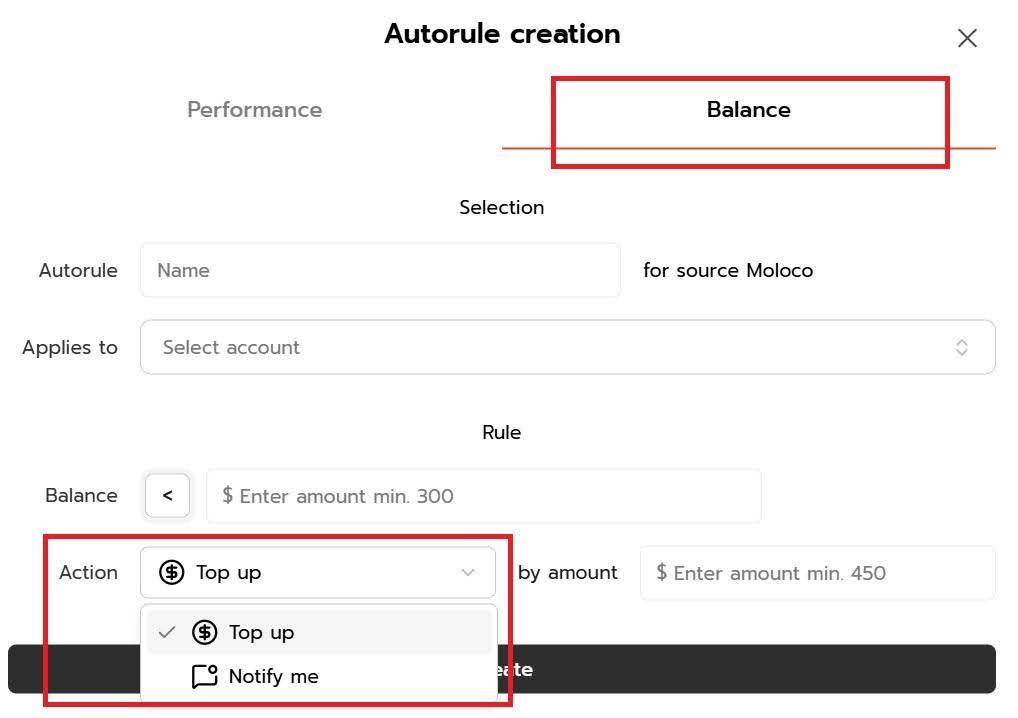
3. Action determines what the exactly system should do when the rule is triggered. Two options are available:
- Top up — automatic adds funds of the account balance by a specified amount.
- Notify Me — sends a notification when your balance drops without refilling. Suitable for situations where refilling is done manually but prompt monitoring is required.
4. In the By amount field, specify the amount by which the balance should be topped up. This field is only available when the Top up action is selected. For example, you could specify a $500 top-up each time the rule is triggered.
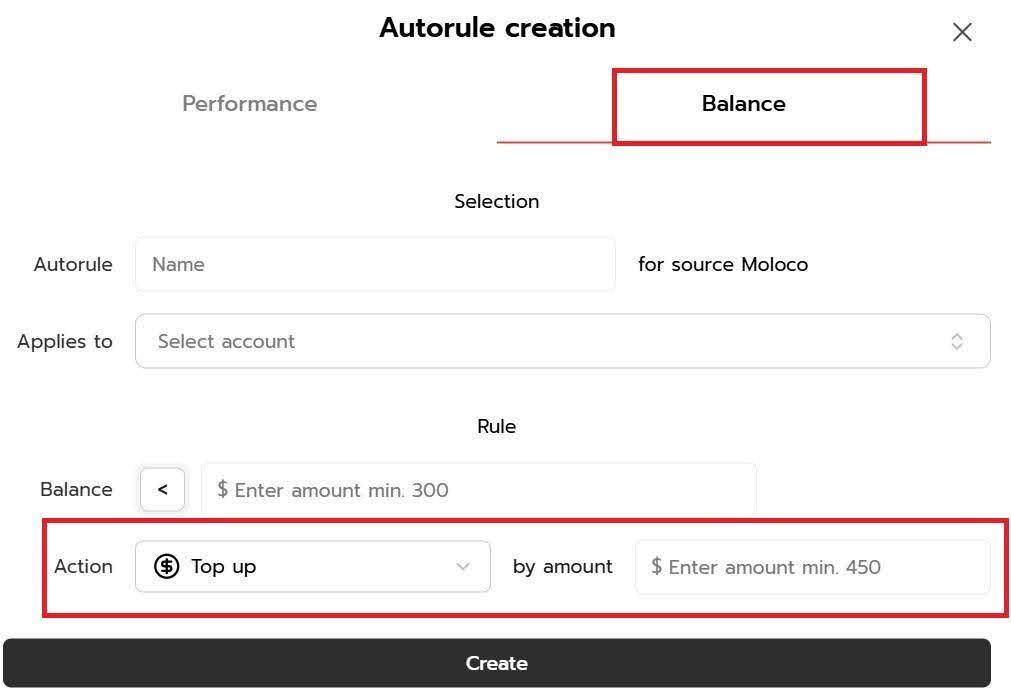
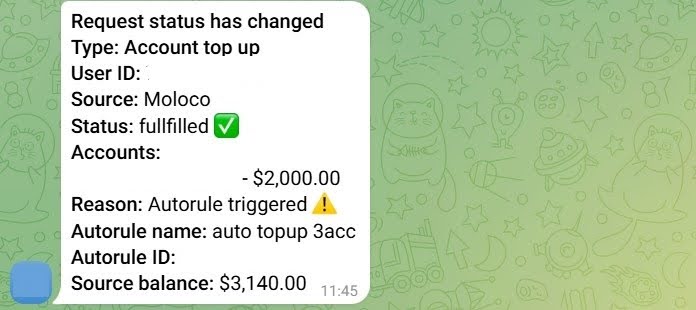
The minimum top-up amount is $450. Auto-top-up will only be executed if your Moloco source balance has enough funds. You will receive an automatic notification in Telegram about the auto-top-up, indicating the top-up amount and your current account balance.
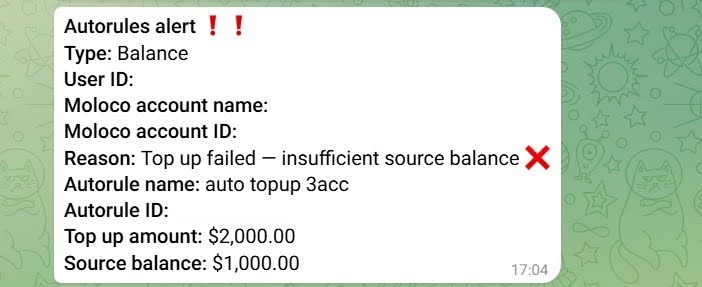
If the available funds are insufficient, the system won’t be able to top up even if the condition is met. In this case, it's best to set up an automatic rule to send a low balance notification so you can determine the exact balance and top up manually.
Implementing an automatic balance rule prevents campaigns from being stopped due to budget constraints and ensures the smooth operation of your ads.
In Manage autorules, there is also a Trigger History tab where all autorule triggers displays and their causes.
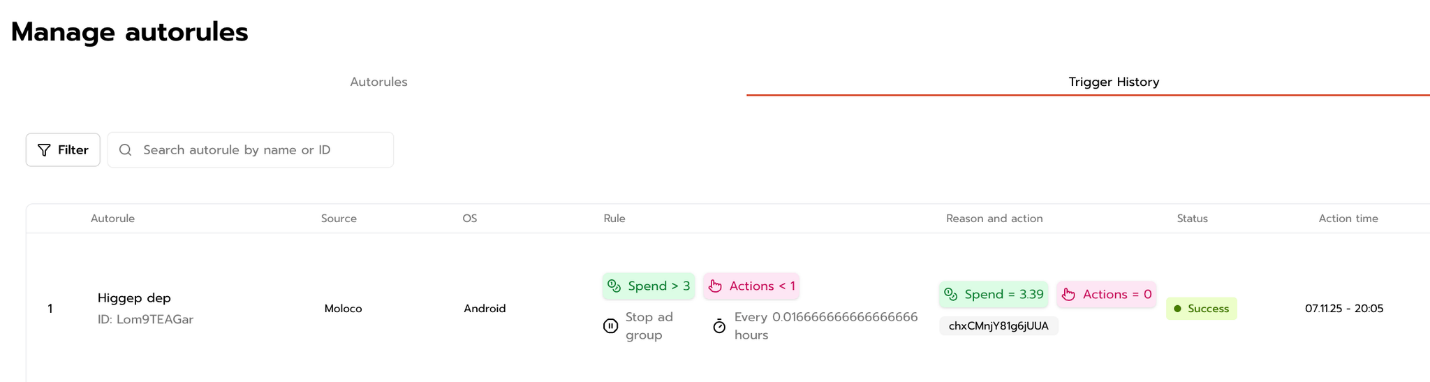
Examples of autorule setups
To make things clear, let's look at a few basic auto-rules that will help you better understand how to set the necessary parameters for Ads .
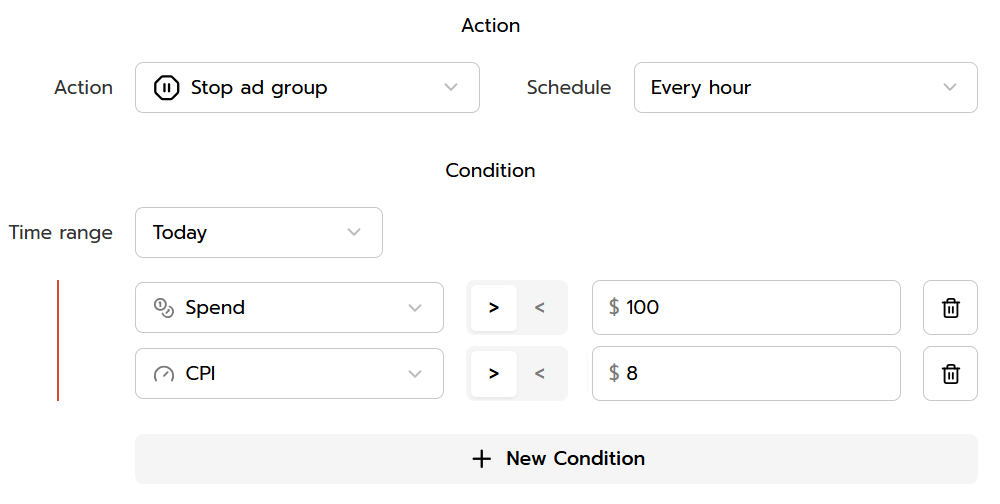
1. CPI is too high (based on spend)
- Spend > $100 , CPI > $8 → Stop Ad Group.
- Schedule — every hour.
- Time range: today.
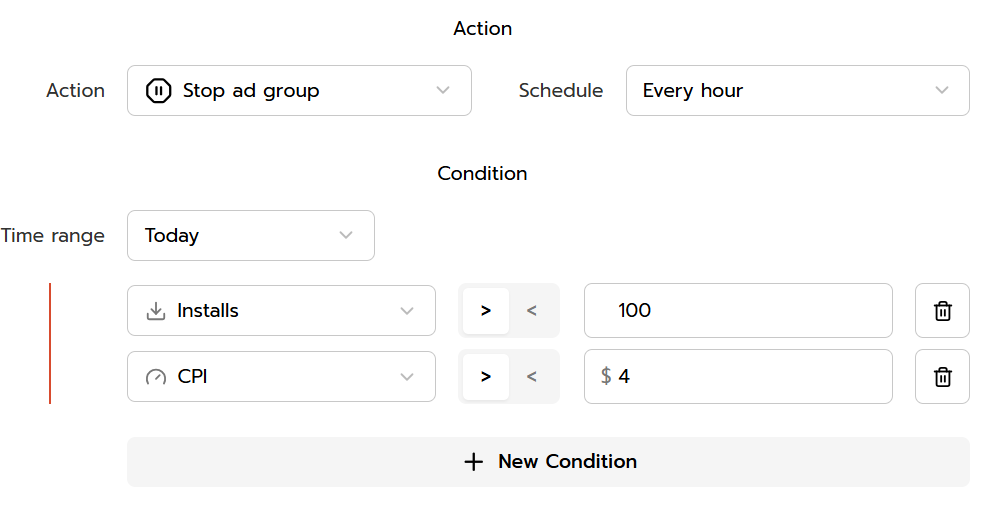
2. CPI is too high (based on install count)
- Installs > 100, CPI > $4 → Stop Ad Group.
- Schedule — every hour.
- Time range - today / last 3 days.
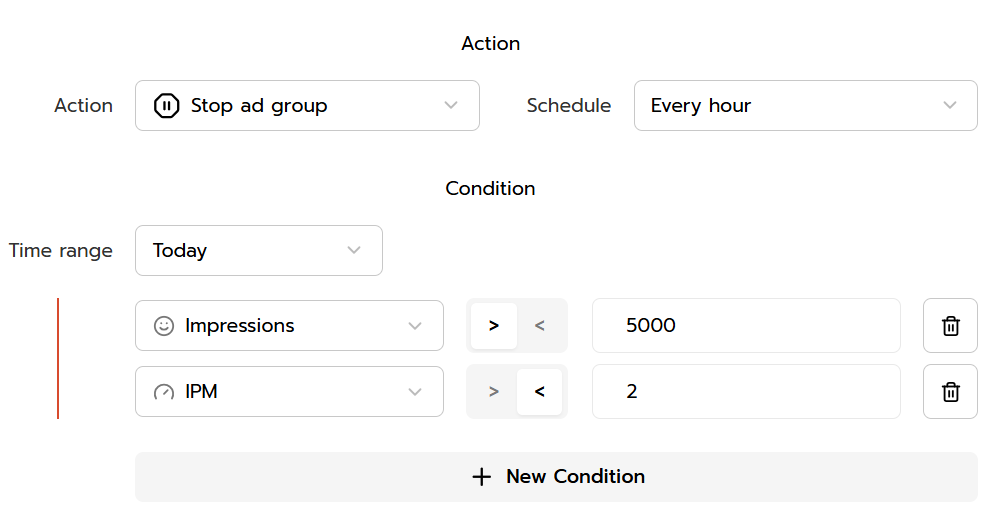
3. Low IPM with a high impressions
- Impressions > 5000, IPM < 2 → Stop Ad Group.
- Schedule — every hour.
- Time range: today.
More examples will appear on our Telegram channel , subscribe to stay up-to-date with important information.
Conclusion
Autorules in RentAcc are a powerful tool for automating and scaling your Moloco Ads campaigns. They allow you to quickly respond to changes in metrics, prevent ineffective spending and maintain stable account performance without constant manual monitoring.
We recommend testing this feature in your RentAcc account and seeing for yourself how much it streamlines your day-to-day traffic management. Share your cases and feedback — we value your feedback to make the product even more convenient and effective.
 Share this post